

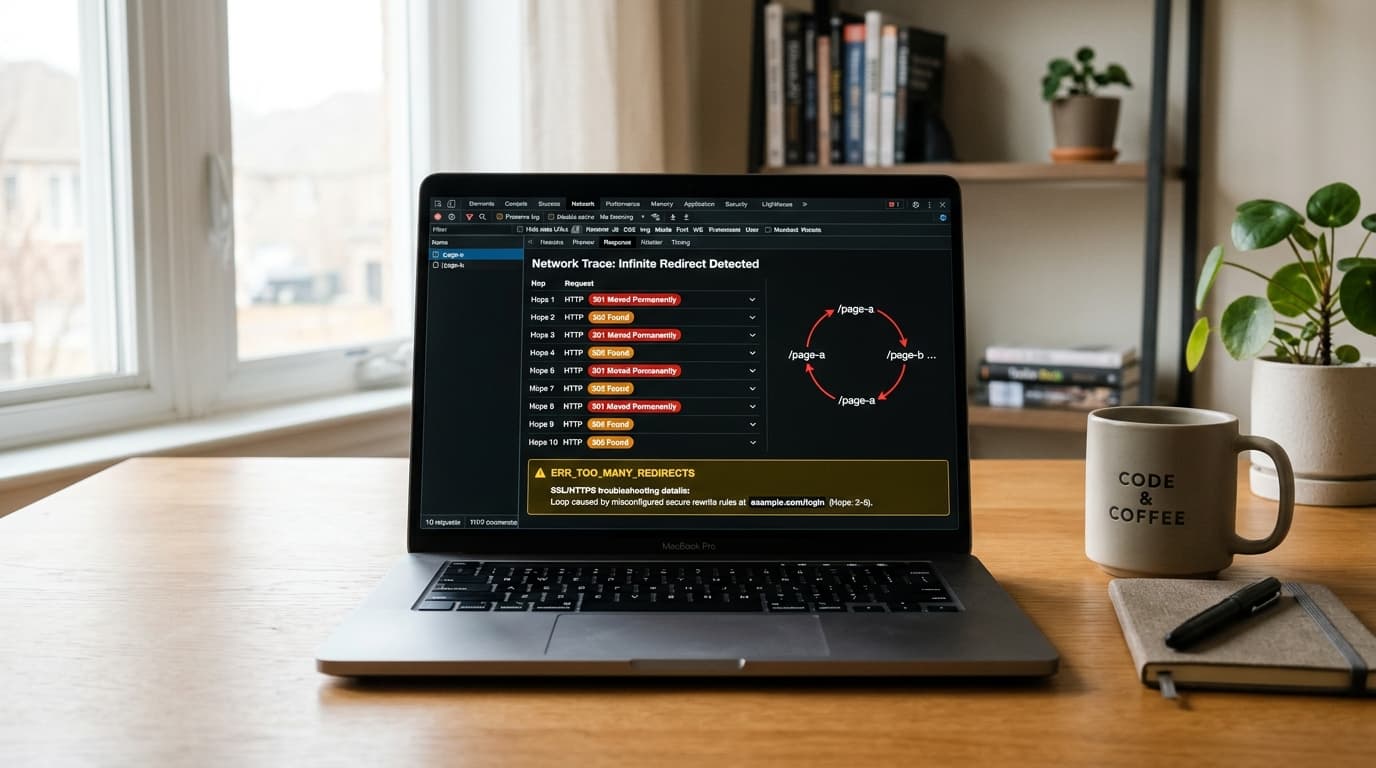
What causes the ERR_TOO_MANY_REDIRECTS error?
The ERR_TOO_MANY_REDIRECTS error occurs when a web browser is caught in an infinite circular redirect loop. Rather than delivering a web page, the server repeatedly forwards the client in circles:
URL A → URL B → URL A → (Loop Continues Indefinitely)
Modern web browsers (like Google Chrome, Safari, and Mozilla Firefox) track consecutive HTTP redirect hops (status codes 301, 302, 307, and 308). When the chain exceeds approximately 10 to 20 consecutive hops without delivering a final 200 OK response, the browser terminates the connection and displays:
This page isn’t working
example.comredirected you too many times.
Try clearing your cookies.
ERR_TOO_MANY_REDIRECTS
In over 90% of real-world scenarios, this is not caused by your browser—it is caused by a configuration conflict between an edge CDN (like Cloudflare), an SSL certificate, and origin server rewrite rules.
How to diagnose the loop step-by-step
Before tweaking server configuration files, you must identify the exact URLs bouncing back and forth.
Use our free URL Redirect & SSL Loop Checker to trace each hop, inspect status codes, and pinpoint the circular loop in seconds.
Alternatively, you can inspect the raw HTTP header chain from your terminal using curl:
curl -ILs "https://yourdomain.com" | grep -E "HTTP/|Location:|location:"
A healthy response will show a single hop upgrading HTTP to HTTPS:
HTTP/1.1 301 Moved Permanently
Location: https://yourdomain.com/
HTTP/2 200 OK
If you have an active redirect loop, you will see identical URLs repeating endlessly:
HTTP/1.1 301 Moved Permanently
Location: https://yourdomain.com/
HTTP/1.1 301 Moved Permanently
Location: http://yourdomain.com/
HTTP/1.1 301 Moved Permanently
Location: https://yourdomain.com/
Fix 1: Cloudflare Flexible SSL conflict (The #1 root cause)
By far the most common cause of ERR_TOO_MANY_REDIRECTS is Cloudflare's Flexible SSL encryption mode.
Why this creates a loop
- A visitor enters
https://yourdomain.comin their browser. - Cloudflare receives the encrypted HTTPS request at its edge proxy.
- Under Flexible SSL, Cloudflare contacts your origin server over plain, unencrypted HTTP (port 80).
- Your origin server (Nginx, Apache, or WordPress) has a standard rule forcing all HTTP traffic to HTTPS. It sends an HTTP
301redirect back tohttps://yourdomain.com. - Cloudflare receives the redirect and repeats step 2—creating an infinite ping-pong loop between Cloudflare and your origin server.
The solution
- Log into your Cloudflare Dashboard.
- Select your domain and navigate to SSL/TLS → Overview.
- Change the encryption mode from Flexible to Full or Full (strict).
- Verify your origin web server has an active SSL certificate (you can test this with our SSL Certificate Checker).
Fix 2: WordPress Site URL and Home URL mismatch
In WordPress installations, redirect loops frequently occur when the configured database URLs do not match the protocol or www prefix enforced by the server.
How to fix via wp-config.php
If you cannot access your wp-admin dashboard because of the redirect loop, connect to your server via SSH, FTP, or cPanel File Manager and edit wp-config.php:
define('WP_HOME', 'https://yourdomain.com');
define('WP_SITEURL', 'https://yourdomain.com');
Make sure both URLs match exactly:
- Both must use
https://(nothttp://). - Both must either include or omit
www.uniformly.
How to fix via WP-CLI
If you have terminal access, verify and update the database values directly:
wp option get siteurl
wp option get home
wp option update siteurl "https://yourdomain.com"
wp option update home "https://yourdomain.com"
Fix 3: Nginx and Apache HTTPS rewrite rules
Misconfigured .htaccess files or Nginx virtual host configurations often create conflicting canonical redirect rules.
Correct Nginx HTTPS redirect configuration
Ensure your port 80 block cleanly redirects to https://, and your port 443 block handles the site without re-triggering port 80:
# HTTP server block: Redirect all port 80 traffic to HTTPS
server {
    listen 80;
    listen [::]:80;
    server_name yourdomain.com www.yourdomain.com;
    return 301 https://yourdomain.com$request_uri;
}

# HTTPS server block
server {
    listen 443 ssl http2;
    listen [::]:443 ssl http2;
    server_name yourdomain.com;

    ssl_certificate /etc/letsencrypt/live/yourdomain.com/fullchain.pem;
    ssl_certificate_key /etc/letsencrypt/live/yourdomain.com/privkey.pem;

    # Your web root and location blocks here...
}
Correct Apache (.htaccess) HTTPS redirect
In your web root .htaccess, ensure you check %{HTTPS} off before issuing a redirect:
<IfModule mod_rewrite.c>
RewriteEngine On
RewriteCond %{HTTPS} off
RewriteRule ^(.*)$ https://%{HTTP_HOST}%{REQUEST_URI} [L,R=301]
</IfModule>
If you are behind a reverse proxy or load balancer (such as AWS ALB or Cloudflare), check the X-Forwarded-Proto header instead:
<IfModule mod_rewrite.c>
RewriteEngine On
RewriteCond %{HTTP:X-Forwarded-Proto} !https
RewriteRule ^ https://%{HTTP_HOST}%{REQUEST_URI} [L,R=301]
</IfModule>
Fix 4: Browser cache and cookie loops
Browsers aggressively cache permanent HTTP 301 redirects on your local machine. Even after you fix the server configuration, your local browser may continue looping because it stored the broken redirect in memory.
How to clear cached redirects:
- Test in Private / Incognito Mode: Open a new Incognito window (
Ctrl + Shift + NorCmd + Shift + N) and reload the page. - Hard Refresh: Hold
Shiftand click the browser Reload button (or pressCtrl + F5on Windows /Cmd + Shift + Ron Mac). - Clear Site Cookies: Open Chrome DevTools (
F12), switch to the Application tab, click Cookies, and clear all entries for your domain.
Testing with cURL and the Redirect Checker
Never rely solely on your local browser to confirm a redirect fix. Use command-line tools that ignore browser caching:
# Verify the exact HTTP status codes and Location headers
curl -ILs "http://yourdomain.com"
You should see an initial 301 Moved Permanently pointing directly to your canonical https:// address, followed immediately by 200 OK.
For an immediate visual diagnostic showing response times, security status, and individual hops, use our free URL Redirect & SSL Loop Checker.